Merchant guide
Merchant guide
Everything you need to set up your store, from your first sign-in to following your subscribers.
1Before you start
You need three things:
- Host links from your provider, such as http://server.example.com:8080. A full M3U link works too; we keep only the server address.
- A check login: the username and password of one working subscription at each provider. It is used to check that provider’s hosts every 5 minutes and is stored encrypted.
- Your panel sign-in, which we send when we open your store, together with your store code.
Sign in at merchant.lumoplayer.site. We recommend turning on two-step sign-in from My account right away.


2Add your provider and its check login
On IPTV Hosts, in the Check logins card:
- Click Add provider and type its name, such as the company you buy from.
- Click Change login next to the provider and enter the check login’s username and password.
All links of one provider work as one server: they are checked with its login, and subscribers move between them when one fails. So link every host to its real provider.


3Add several hosts at once
- Click Add several.
- Paste the provider’s links in Links, one per line.
- Type a Name (hosts are named "Name 1", "Name 2" and so on) and pick the Provider.
- Click Test links. Each link shows its result and response time.
- Click Add working, or add only the fastest.
The first link becomes the primary host if you have none yet; the rest back it up in order.


4Add a single host
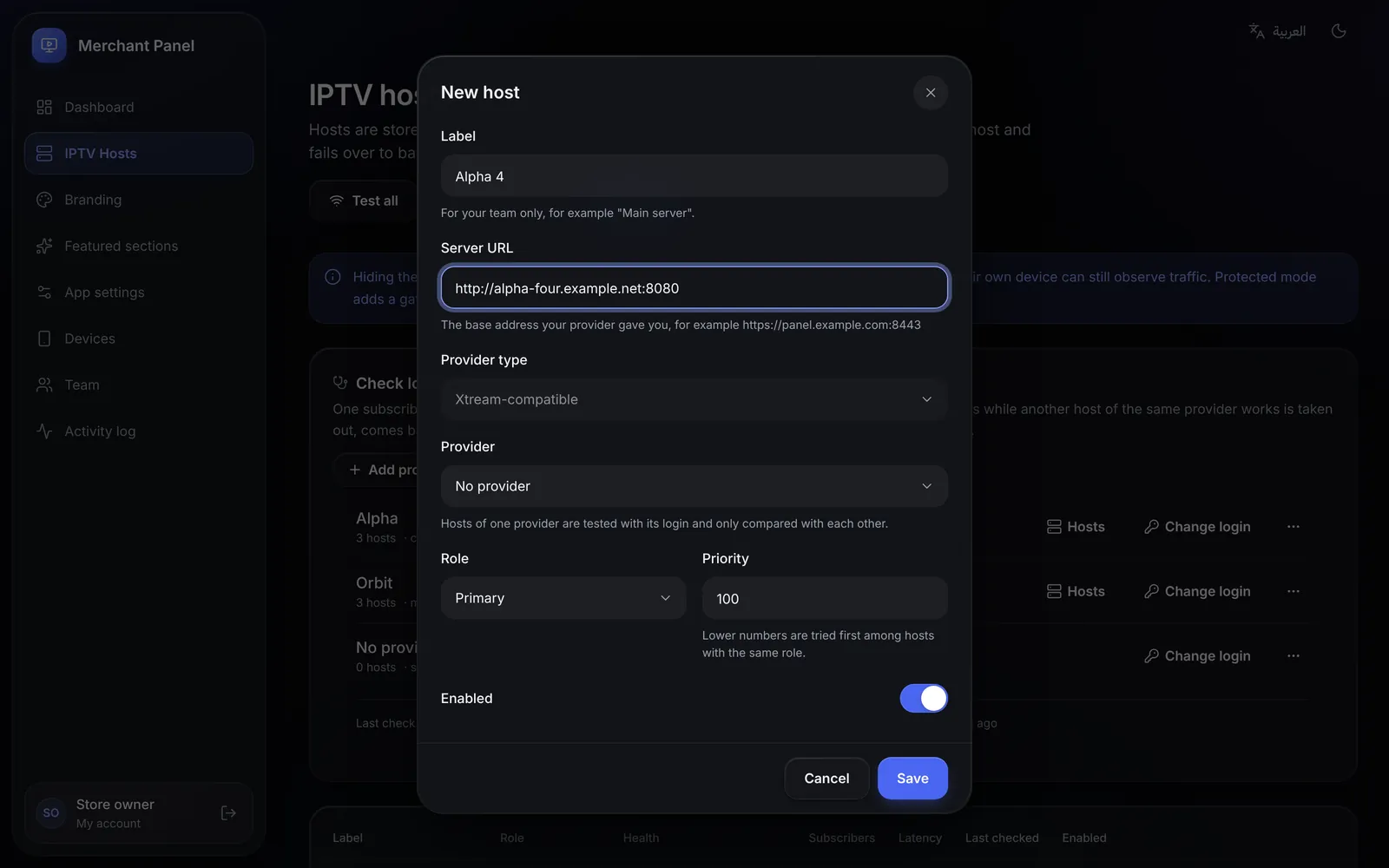
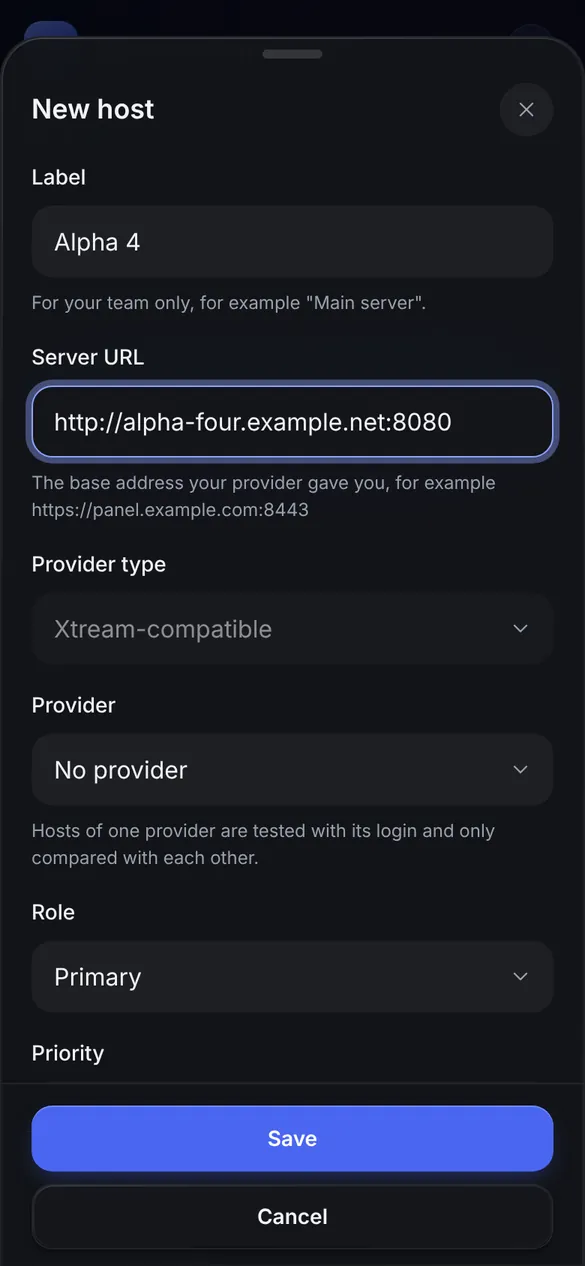
- Click Add host.
- Enter a Label (only your team sees it) and the Server URL.
- Pick the Provider and the Role: primary or backup.
- Priority: lower numbers are tried first among hosts with the same role.
- Click Save, then Test connection on the host’s row.
5Read your hosts’ health
- Healthy: the last check passed; the number next to it is the response time in milliseconds.
- Taken out automatically: checks failed for 15 minutes while another host of the same provider works, so subscribers are kept off it. It comes back by itself once it works, and is deleted after 3 days out.
- Down: two checks in a row failed.
- Subscribers: online now, used the app today, and signed in through this host.
Test all checks every host right away and offers to delete the ones that failed.
Note: checks confirm that a host accepts sign-in. If a subscriber reports a channel that will not play while the host is healthy, the problem is usually at the provider.
6Set up your brand
On Branding, change the store name, app name, colors, logo and welcome message, and add your support contacts (WhatsApp, Telegram, email) so subscribers can reach you from inside the app. The preview next to the settings shows the result before you save.


7Featured sections and app settings
On Featured sections, add round logos to the top of the app’s home screen; each opens the provider categories you choose.
On App settings, choose which sections are shown, and set parental controls, the renewal reminder, maintenance mode and the default app language.


8Send the app to your subscribers
- Send your subscriber the download link: lumoplayer.site, with install help for every device.
- Send them your store code, shown on the panel dashboard.
- They sign in with the username and password of their subscription at the provider.
Follow devices on Devices: block a device or sign it out, and see its type, app version and last activity.